
Help · Your library
Organizing and curating your library
Organize
Organizing files your loose mod zips into category folders in your library archive, for example archive\Scripts & Tools. The game only reads the top of the mods folder, so it ignores those subfolders. Your active mods stay active: Silo links them back into the mods folder, or copies them when the folder is cloud-synced. Unzipped folder mods are left where they are, and nothing is deleted.
When new zips are waiting, the status strip above the Library list says “N new mods aren’t filed” with Review. You can also start from Settings, then Library, with the Organize button on the Library layout card.
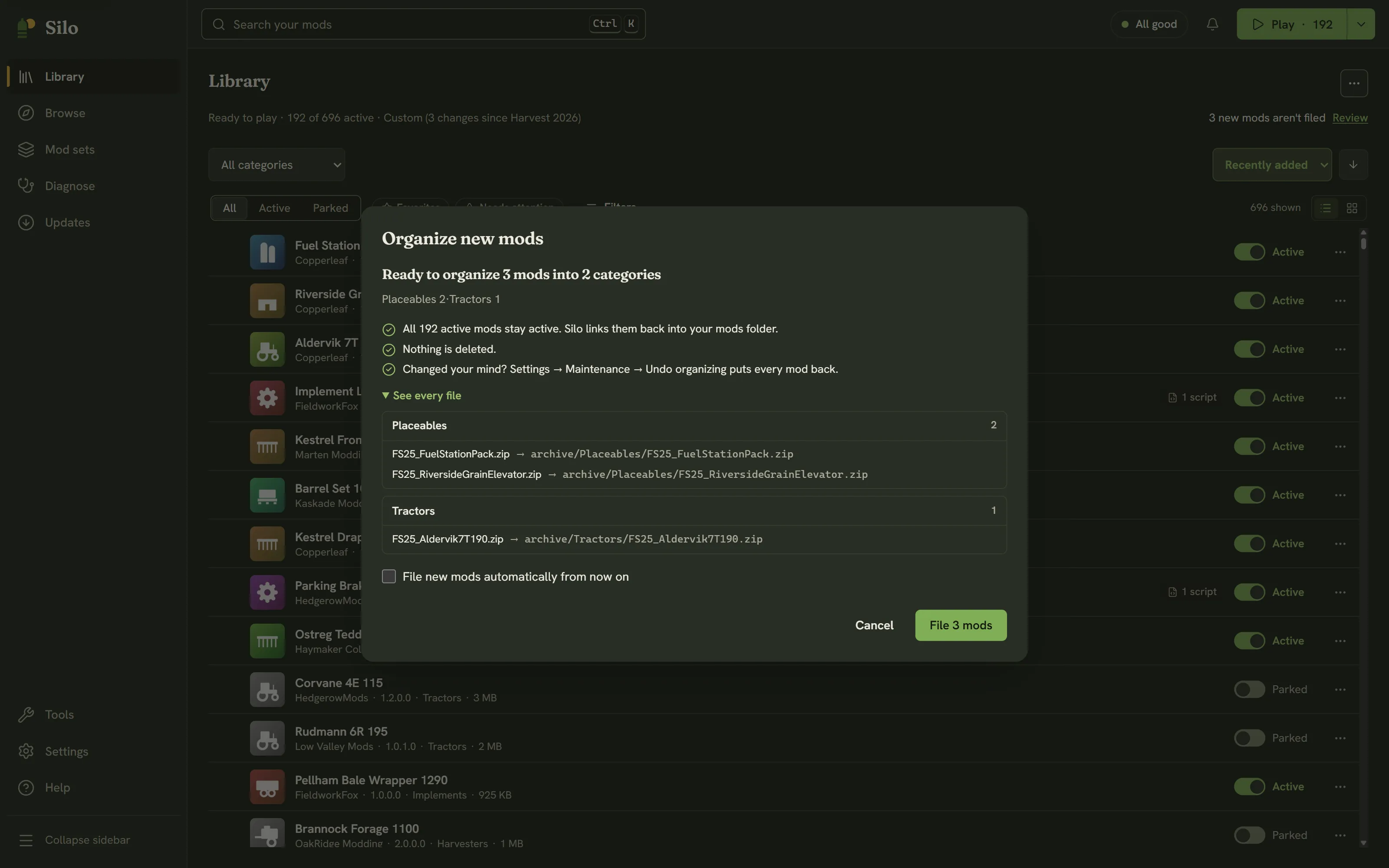
Either way opens the Organize new mods dialog. Nothing has moved yet:
- A summary says how many mods go into how many categories, and that active mods stay active and nothing is deleted.
- See every file lists each mod and the category folder it goes to.
- File new mods automatically from now on turns on auto-filing.
Click File N mods to go ahead, or Cancel. Progress shows at the bottom of the dialog. If some mods can’t be moved, the dialog stays open and lists them with the reason and Copy details; the rest are filed, and the ones that failed stay in your mods folder.
Auto-file new mods (in Settings, then Library) files new zips as they appear in your mods folder and keeps them active, without the dialog. It’s off until you turn it on.
Undo organizing
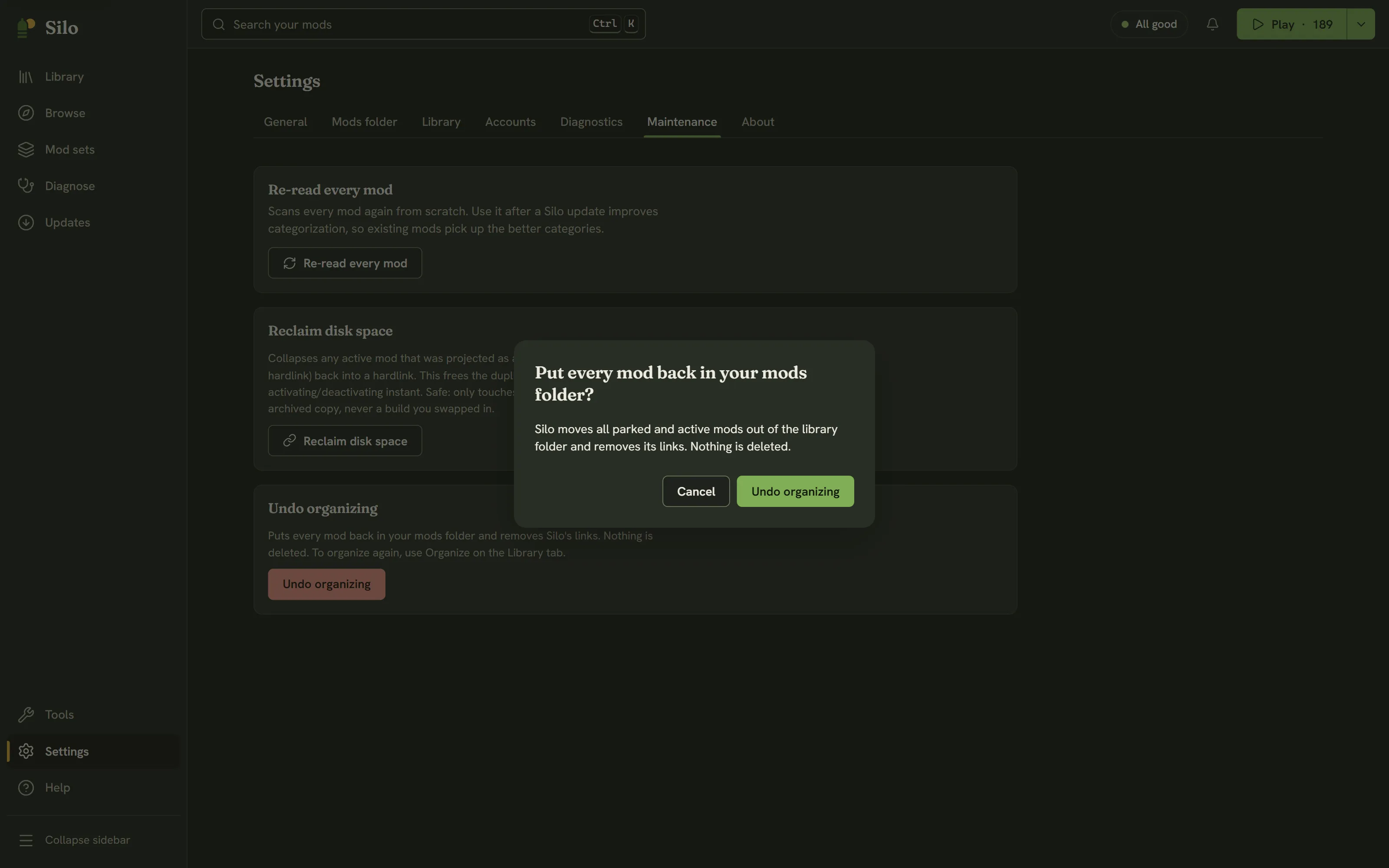
Undo organizing is the only undo for organizing, and it undoes all of it: there is no undo for a single batch. Open Settings, then Maintenance, and click Undo organizing. Silo asks Put every mod back in your mods folder?, then moves every parked and active mod out of the library folder and removes its links. Nothing is deleted. Afterwards the game loads every mod in that folder again, including the ones you had parked. To organize again, use Organize.
Favorite, hide and flag
These live in a mod’s ⋯ menu in the Library (or right-click), in the ⋯ menu of its details, and, for several mods at once, in the selection bar.
- Favorite marks the mods you reach for most. The Favorites chip shows only those.
- Hide leaves a mod out of the list. Turn on Hidden in Filters to see hidden mods again. Hiding never parks or deletes a mod.
- Flag is your own note that a mod is broken or not to be trusted. A flagged mod shows a Flagged badge, counts toward Needs attention, and has its own Flagged filter. It is separate from Silo’s own checks.
Each one is a toggle: the same menu says Remove favorite, Unhide or Remove flag to clear it.
Rating, tags and notes
Open a mod’s details and scroll to My notes:
- Rating: click a star (1 to 5). Click the same star again to clear it. Sort the Library by My rating to use it.
- Tags: type in the add tag… box and press Enter. Click a tag to show every mod with it, or its ✕ to remove it. The Tag picker in Filters does the same.
- Notes: anything you want to remember. It saves when you click away.
Category
If Silo filed a mod under the wrong category, open its details and use the Category section: pick a category and an optional subcategory, then Save category. The section then says Set by you, and Reset to automatic goes back to Silo’s choice. In the Library, Change category… in a mod’s menu opens a quick list of categories, with Reset to auto at the bottom.
None of this touches your mod files or the game. Favorites, flags, ratings, tags and notes are kept in Silo’s own database, tied to each mod’s Mod ID, so they survive updates and moves. Clear everything on a mod and Silo drops its record.
Written for Silo 1.0. Something out of date? Tell us.