
Help · Getting started
Getting started with Silo
Silo is a desktop app for your Farming Simulator 25 mods. It isn’t an in-game mod: it runs on your computer next to the game and works with the files FS25 already keeps in Documents\My Games\FarmingSimulator2025\. Silo never edits the game itself.
Install
Get Silo from the download page or the Releases page.
- Windows: the setup
.exe(recommended) installs Silo for your user account and needs no administrator rights. The.msiinstalls it for everyone on the PC and asks for administrator rights. The installers are signed by Silo’s developer, David Hellmer. A brand-new release can still show a blue “Windows protected your PC” prompt while it builds reputation: click More info, then Run anyway. - macOS (preview): open the
.dmgand drag Silo to Applications. The Mac build is signed with an Apple Developer ID by Silo’s developer, David Hellmer, and notarized by Apple, so it opens without a warning. - Linux (preview): an
.AppImage(make it executable withchmod +x), a.debor an.rpm.
Windows is the tested platform. Silo runs natively on macOS and Linux, but it hasn’t been tried on many real machines there yet.
First run
A new library opens a short setup with three steps. Skip setup (top right) takes you straight to the Library with nothing moved.
- Your mods. Silo finds the folder FS25 reads, including a custom folder set in the game, and starts reading your mods in the background. Press This is right, or Choose another folder…. If the game hasn’t made its mods folder yet, Create it makes it for you.
- How Silo keeps them. Active mods load in the game; parked mods are kept by Silo and not loaded. Choose where parked mods live: inside your mods folder (recommended), or On another drive…. You can also tick the box to file new mods automatically.
- Organize. Silo shows what organizing would do before anything moves: how many mods go into which categories, that your active mods stay active, and that nothing is deleted. Press Organize N mods, or Not now, show my library. If you change your mind later, Settings, then Maintenance, then Undo organizing puts every mod back.
If you used an earlier Silo, you get a one-time What’s new in Silo 1.0 card instead of the setup. Help, then See what’s new shows it again.
Finding your way around
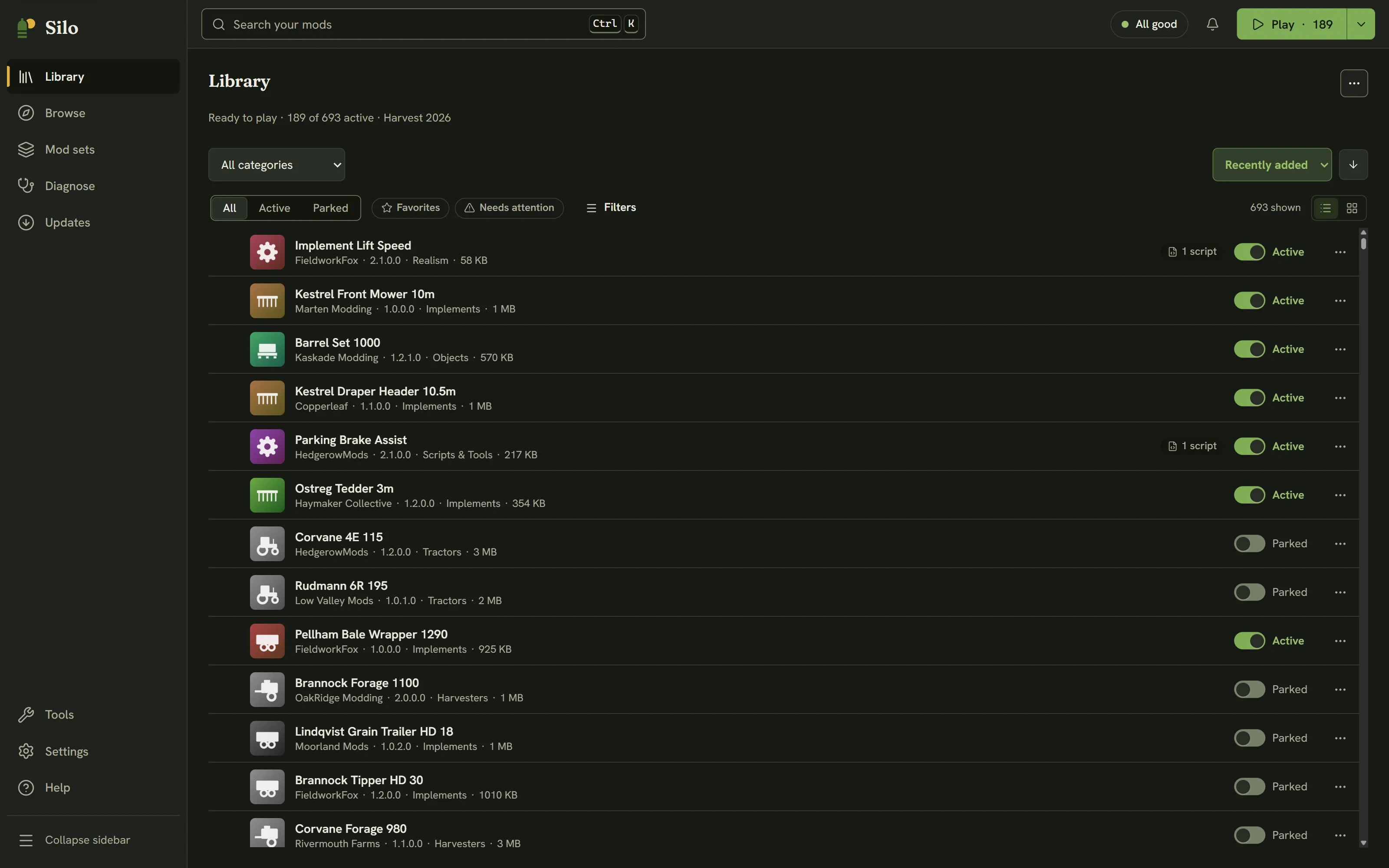
The sidebar on the left holds the five main places: Library (your mods), Browse (find new ones), Mod sets (saved sets, sharing and savegames), Diagnose (crashes, conflicts and problems) and Updates. Tools, Settings and Help sit at the bottom.
The header across the top has:
- Search: your mods, or Silo’s catalog while you’re in Browse.
- The status chip: “All good”, “N problems” or “N to review”. Click it to open Diagnose.
- The Activity bell: what Silo is doing right now, and recent errors with Copy details.
- Play: starts the game with your active mods. Its menu shows which mod set you’re on.
Keyboard shortcuts
| Keys | What it does |
|---|---|
| Ctrl+K or / | Search |
| F5 or Ctrl+R | Rescan your library |
| Alt+1 to Alt+5 | Library, Browse, Mod sets, Diagnose, Updates |
| Ctrl+, | Settings |
| Alt+← | Back to the previous page |
| F6 or Shift+F6 | Move between the sidebar, header, notices, page and details |
| Esc | Close the mod details, a menu or a dialog |
| ↑ ↓ Home End | Library: move between mods |
| Enter | Library: open the mod’s details |
| Space | Library: turn the mod on or off |
| Shift+F10 | Library: the mod’s actions menu |
| ? | Show every shortcut |
Search, Rescan, Settings and F6 work while you’re typing in a field. The others wait until you leave it.
Next: Your library: active and parked mods.
Written for Silo 1.0. Something out of date? Tell us.