
Help · Your library
Your library: active and parked mods
Farming Simulator 25 loads every mod it finds in one flat folder, Documents\My Games\FarmingSimulator2025\mods. It has no idea of “installed but off”. Silo splits that folder into two things: your whole library, which you see in Library, and the mods folder the game reads, which Silo keeps holding only the mods you want loaded.
Active and parked
- Active mods are in the game’s mods folder, so the game loads them.
- Parked mods are kept by Silo in your library archive and aren’t loaded.
Parking a mod never deletes it. Each row has a switch with the word Active or Parked beside it: click it, or select the row and press Space. Parked rows show a greyed-out icon.
Every switch shows a short message with Undo, so you can put the previous set of active mods straight back.
Parking a loose mod (a .zip you dropped into the mods folder that Silo hasn’t filed yet) also files it into your library archive, in its category folder. The first time, Silo explains this and asks first. Tick Don’t explain this again if you don’t need the reminder.
List and cards
The list is the default. The two buttons at the right of the toolbar switch between List view and Card view, and Silo remembers your choice. For more rows on screen, set List density to Compact in Settings, then General.
Each row shows the mod’s icon, title, author, version, category and size, plus up to three badges. Problems come first (Modified, Can’t load, Ignored name, Conflict, Flagged), then status (Verified build, Update, Folder mod), then info (Map, Has settings). Click a row or press Enter to open the mod’s details. The ⋯ button, a right-click or Shift+F10 opens the same menu: Activate or Park, Open details, Find in Browse, Change category…, Edit settings… (when the mod has settings), Favorite, Hide and Flag.
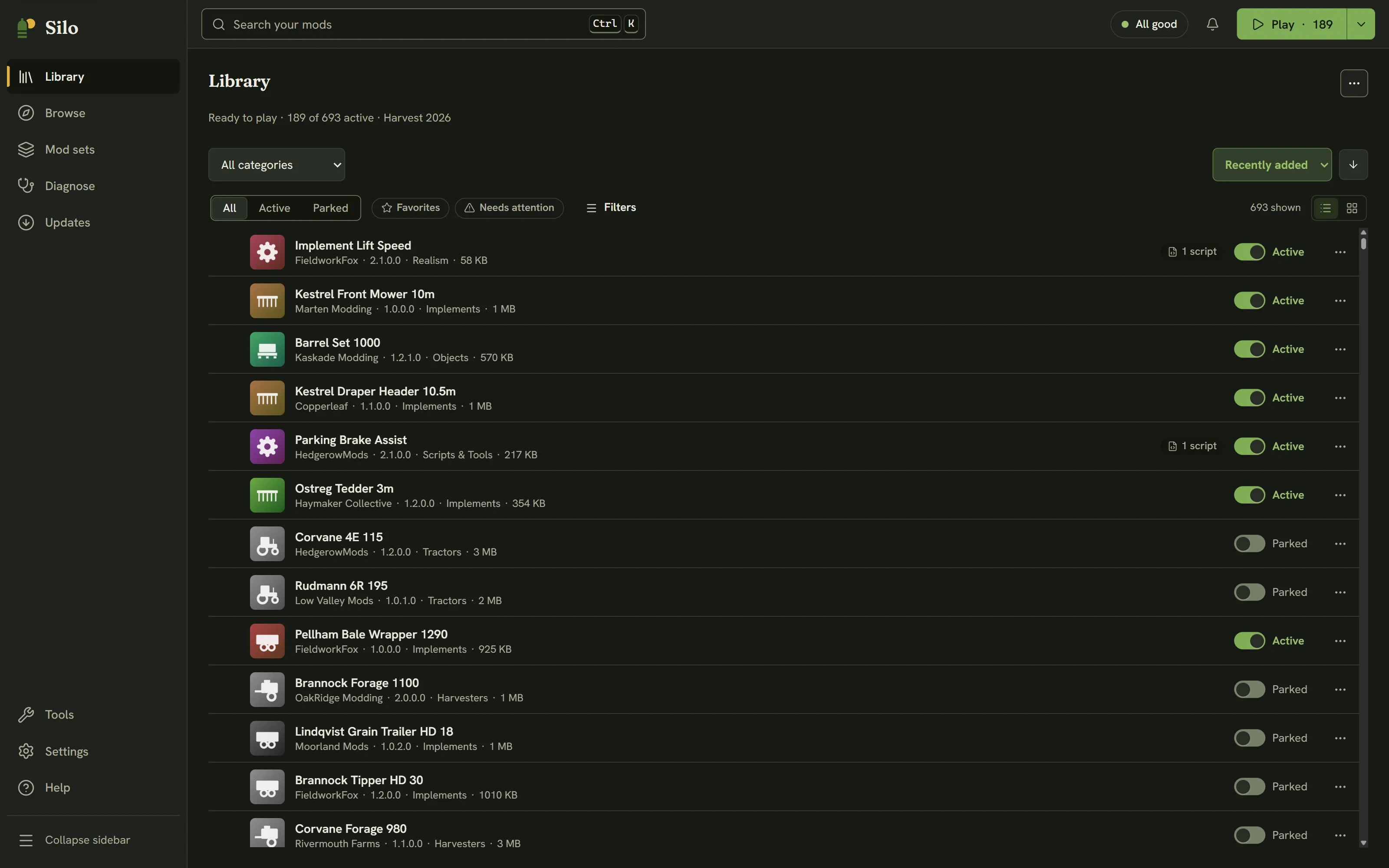
The status strip
The line above the list sums things up, for example “Ready to play · 142 of 737 active”, followed by the name of your mod set when the active mods match one. “Ready to play” only shows when Play would work. The strip also points to the most important thing to do, with a link: your last game ended unexpectedly (See details), conflicts need fixing (See why), new mods aren’t filed (Review) or updates are waiting (See updates).
Filters
- All / Active / Parked narrows the list to one side. Silo remembers it.
- Favorites shows your favorites. Needs attention shows mods with a problem (can’t load, conflict, modified, flagged) or an update.
- Filters opens the rest: Hidden (show hidden mods too), Flagged, In conflict, Has settings, Needs update, Maps, Script mods, and a Tag picker once you’ve tagged something.
- The category and sort menus sit above the toolbar. Sort by Recently added, Name, Category, Size, Version or My rating; the arrow flips the order.
Filters in effect show as chips under the toolbar. Each chip’s ✕ removes it, and Clear filters removes them all.
Changing many mods at once
A checkbox appears when you point at a row. Once anything is selected, a bar replaces the toolbar: Turn on, Park, Favorite, Hide, Mod sets… (see adding mods to several sets) and Select all N shown, then Clear. Shift-click selects a range. Turning on or parking more than 25 mods asks first, and you can undo it right after.
How active mods reach the game
Silo links each active mod from your library into the mods folder, so there is no second copy on disk. Where links aren’t possible, most often in a cloud-synced Documents folder, Silo copies active mods instead. That works the same, but uses more disk and makes big switches slower. Unzipped folder mods are left where they are. Play just starts the game, which loads whatever is in the mods folder.
Written for Silo 1.0. Something out of date? Tell us.