
Help · Finding and updating mods
Keeping mods updated
Updates (Alt+5 in the left rail) is the one place to check for mod updates and install them. It compares your mods with Silo’s catalog, which knows the latest version of each mod across ModHub and GitHub, so a mod from one source doesn’t look out of date just because the other has a different version.
Checking
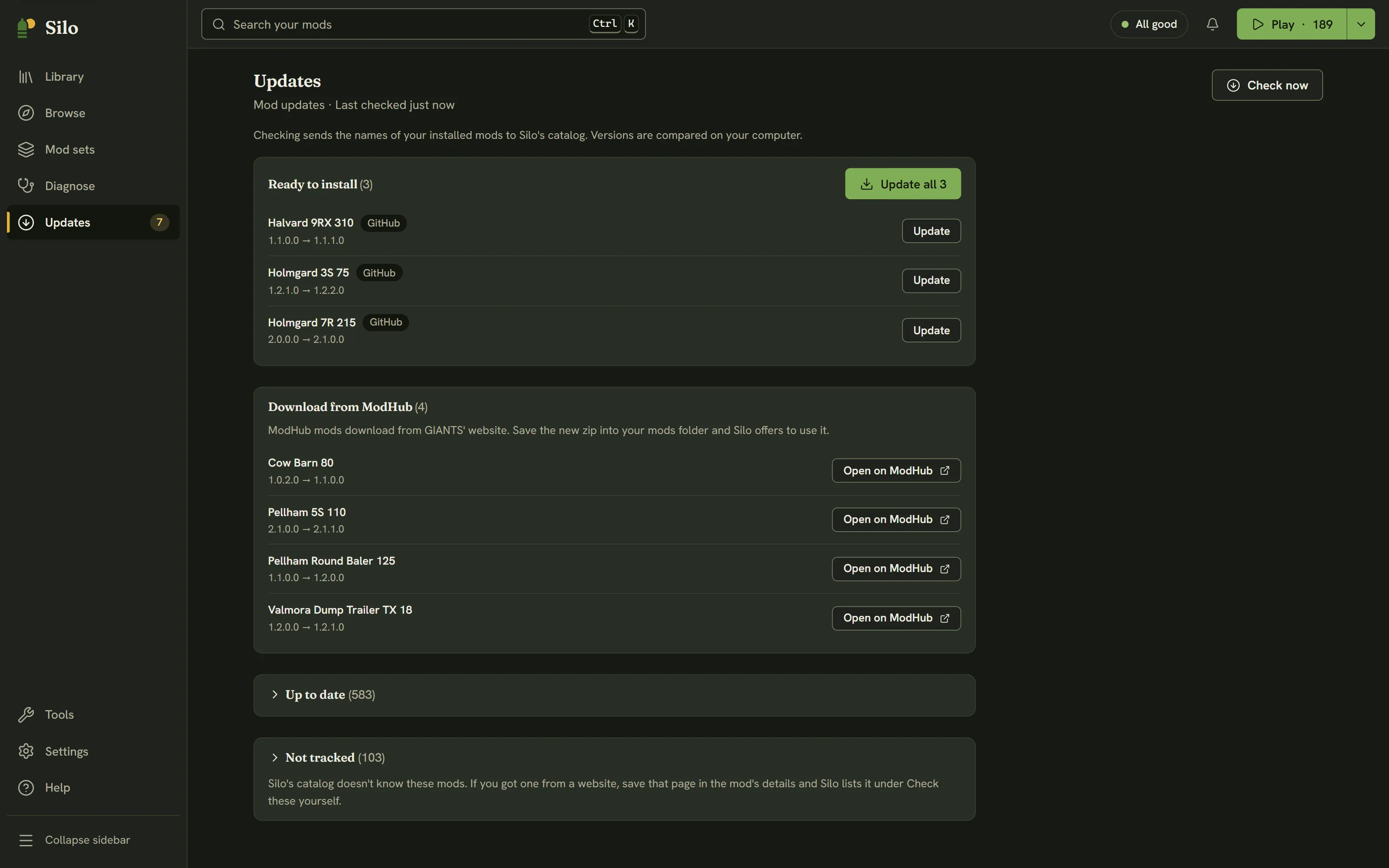
Silo checks only when you click Check now. The page says what that involves:
Checking sends the names of your installed mods to Silo’s catalog. Versions are compared on your computer.
Mods you’ve linked to a GitHub repository are also checked with GitHub directly, and that answer wins for them. The header shows when you last checked.
The first time you open Updates, Silo asks whether to check when it starts: Check on start or Only when I ask. It stays off unless you turn it on, and you can change it any time in Settings, then General, with Check for mod updates when Silo starts.
What a check finds
Results are grouped, and empty groups are hidden:
- Ready to install: newer GitHub releases. Update installs one, and Update all installs them one after another.
- Download from ModHub: updates Silo can’t install for you because there’s no
.zipfor it to download. ModHub mods get Open on ModHub (see below). Others get Open page, including a GitHub release without a.zip, which opens the release’s page. - Check these yourself: mods with a saved download page, oldest-checked first, with Open page and I checked it.
- Couldn’t check: each with the reason, Try again and Copy details. The Activity list and the copied details name the mod. A linked GitHub page that’s been renamed, made private or deleted says so.
- Up to date and Not tracked, collapsed. Not tracked means Silo’s catalog doesn’t know the mod.
- Not checked, collapsed: mods you’ve switched update checks off for (see below).
After a check, Updates in the rail shows how many are waiting, and those mods carry an Update badge in the Library. Needs update in the Library’s Filters popover lists just them.
Installing an update
Silo downloads the new version beside the old one, checks that it’s a complete archive of the same mod, then swaps it in. The previous version goes to the backups folder in your mods folder, which keeps the newest three per mod, and an active mod stays active. A toast confirms it, for example “Updated Courseplay to 8.0.1.0. The previous version is in backups.”
Update all shows its progress under Running now in the Activity panel, for example “Updating 2 of 4: AutoDrive”, and each row reads “Updating…” while its turn runs. The Activity bell in the header shows a ring meanwhile. It ends with one toast, such as “Updated 4 mods. The previous versions are in backups.” or “3 updated, 1 failed”. A failed row says why, with Try again.
Silo won’t update while Farming Simulator 25 is running: close the game first. If Silo stops partway through an update, it finishes or rolls back the swap the next time it reads your library, and tells you what it did.
Leaving a mod out of update checks
If you’ve changed a mod yourself, an update would replace your changes. Switch update checks off for it, and Silo leaves it out of checks and Update all, and never shows an Update badge for it. You can do this in three places:
- In the mod’s details, under Source and updates, turn off Check for updates.
- In the Library, select one or more mods and click Skip updates in the selection bar. A toast confirms it, for example “Silo won’t check 3 mods for updates.”, with Undo.
- From a mod’s row menu, choose Don’t check for updates.
Hiding a mod is separate: Hide only takes it out of the Library list, and Silo still checks it for updates. To stop the checks, switch off Check for updates.
These mods are listed under Not checked in Updates. To check one again, click Check for updates on its row there, or use any of the three places above. The row menu then reads Check for updates, and the selection bar reads Check updates when every mod you selected is left out.
ModHub updates
ModHub mods download from GIANTS’ website, so Silo can’t install them for you. Instead:
- Click Open on ModHub and download the new
.zipfrom the mod’s page. - Save it into your mods folder, replacing the file with the same name.
- Come back to Silo. It finds the newer build and shows “Found a newer” with the mod’s name and Use this version. The row in Updates offers the same button.
Use this version makes the new file the one Silo keeps, and moves the old build to backups. The mod’s details show the same choice in a banner, with Keep Silo’s if you change your mind. See Problems in your library.
Mods from other websites
For a mod that isn’t on ModHub or GitHub, open its details and, under Source and updates, paste the page you got it from into Where you got it, then click Save. Later checks list it under Check these yourself. Silo only stores the address; your browser visits the page when you click Open page. If the page is a GitHub repository, Silo also links the mod to it, so it’s checked with GitHub from then on.
Written for Silo 1.0. Something out of date? Tell us.